
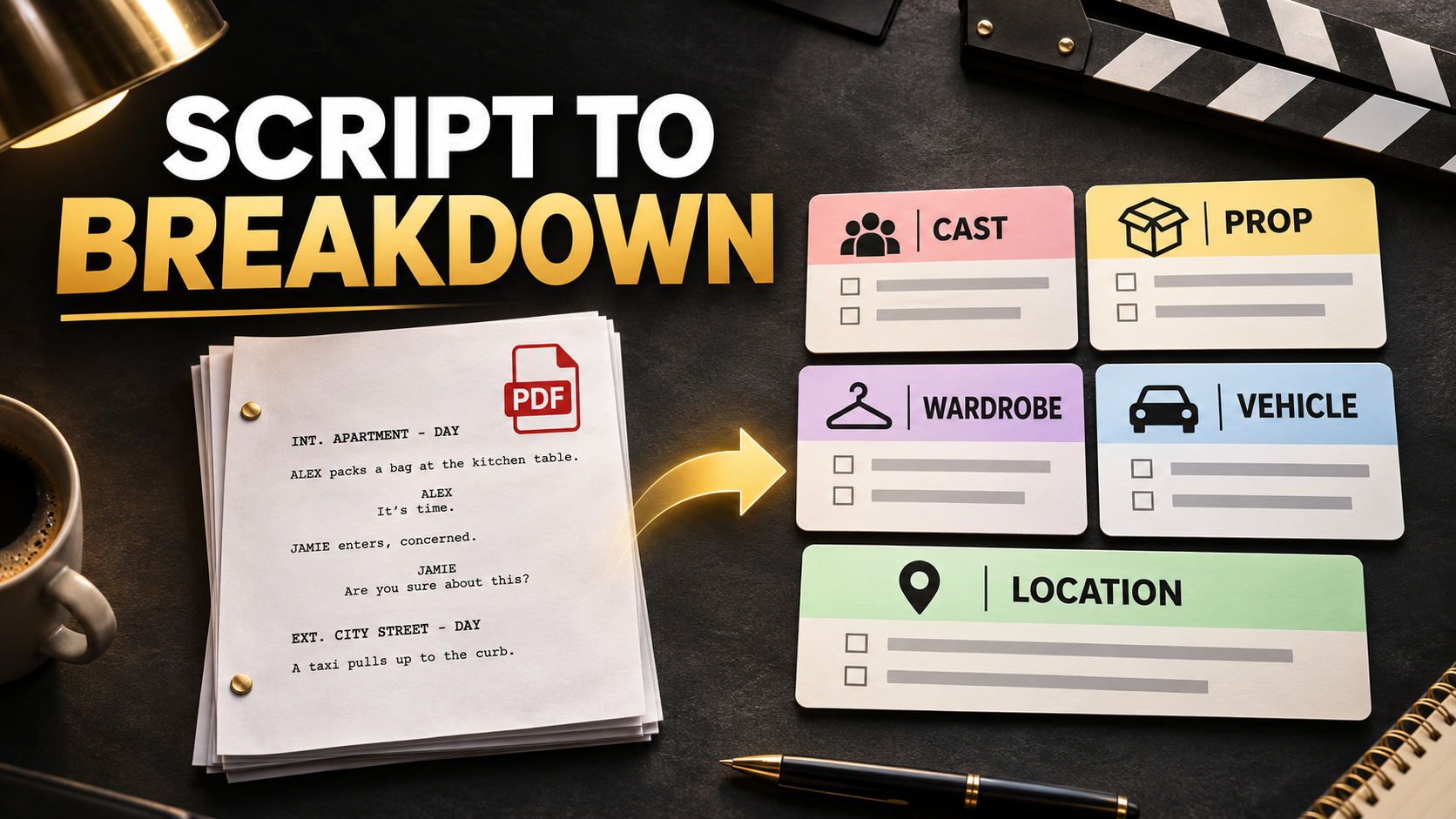
How to Create a Film Production Script Breakdown From a PDF Screenplay
Turn a PDF screenplay into a practical production breakdown. Learn scene setup, element tagging, implied requirements, review steps, and revision control.
A screenplay says a character enters a crowded restaurant, drops a glass, and escapes through a kitchen.
Production needs to know who appears, what breaks, what must be reset, what space is required, and which departments need to discuss the action.
To create a production script breakdown from a PDF, verify the draft, establish its scenes, identify requirements scene by scene, standardize recurring elements, and have the production team review the result.
You can perform that work manually or use software to generate a first pass. In either case, the breakdown becomes useful when its entries are traceable to the screenplay and clear enough for departments to act on.
What a production script breakdown contains
A breakdown organizes the resources and requirements implied by the screenplay.
Typical scene information includes scene number, heading, interior or exterior, day or night, location, and scene length. Element categories commonly include cast, background, props, wardrobe, vehicles, stunts, and effects.
StudioBinder’s breakdown guidance describes this process as identifying the elements needed to prepare a scene and organizing them into breakdown sheets and production reports. Script breakdown overview
A breakdown supplies information for scheduling and budgeting. The team still needs to decide how scenes will be realized, what resources are available, and how long the work will take.
Step 1. Verify the screenplay PDF
Start with the correct document.
Record the title, draft date, revision identifier, and the person who supplied it. Save a clean source copy.
Open the PDF and check that every page is present and readable. Test whether you can select and copy a scene heading and a paragraph of action.
If the PDF contains scanned images, text extraction may require optical character recognition. Inspect the result carefully, especially names, scene headings, page numbers, and punctuation.
Before using any software, confirm what document types and text conditions it supports.
Check for extraction problems
Copy a short passage into a plain text field and compare it with the page.
Look for missing character names, merged columns, detached scene numbers, or dialogue placed in the wrong order.
If extraction is unreliable, obtain a cleaner PDF or a supported source file from the writer. A polished report cannot compensate for missing source text.
Step 2. Establish a reliable scene list
Read the screenplay’s headings and create a scene register.
| Field | Example |
|---|---|
| Scene ID | 24 |
| Heading | INT. RESTAURANT KITCHEN — NIGHT |
| Story location | Restaurant kitchen |
| Interior/exterior | Interior |
| Time designation | Night |
| Source pages | Pages 31–33 |
| Draft | Production review draft A |
The example is illustrative. Use the source’s actual identifiers.
If scene numbers are absent, establish a provisional system and identify it clearly. When official numbers are introduced, reconcile the records.
Watch for montages, intercuts, secondary headings, and continuous action. These can require judgment about how to represent the material for production.
Step 3. Standardize recurring names
The same element can appear under several descriptions.
A screenplay might call a character “SECURITY GUARD,” “GUARD,” and later “MALIK.” A recurring car may be described by its color in one scene and its owner in another.
Create a canonical name for each confirmed recurring element. Keep aliases or source wording in a note where needed.
For locations, distinguish the story location from the physical place where production will shoot.
Several story interiors may be filmed at one practical location. A single story location may also require more than one shooting location.
Do not merge uncertain matches silently. Flag them for confirmation.
Step 4. Mark explicit requirements scene by scene
Read action and dialogue line by line.
For each element, record what it is, where it appears, and what the script requires it to do.
Compare these two entries.
| Basic entry | More useful entry |
|---|---|
| Glass | Drinking glass dropped and broken during argument |
| Car | Protagonist’s car, driven away in scene |
| Coat | Same rain-soaked coat as previous exterior |
| Extras | Restaurant patrons visible during the confrontation |
The second version gives departments a basis for asking the right questions.
Keep exact quantities where the script supplies them. Where it does not, record that the number remains to be determined.
Step 5. Identify implied requirements without inventing decisions
A screenplay may describe an effect without listing everything needed to produce it.
A character arriving soaked may imply wet wardrobe continuity. A dropped glass creates questions about breakage, action, sound, reset, and safety. A busy restaurant implies background and dressing discussions.
StudioBinder’s guidance on hidden elements emphasizes reading beyond obvious nouns to identify requirements that affect preparation. Hidden breakdown elements
Use three statuses in your review notes.
-
Explicit. The requirement appears directly in the screenplay.
-
Implied. The scripted action suggests a requirement needing departmental interpretation.
-
Unresolved. The team must decide what the scene requires.
These are suggested recordkeeping labels, not claims about specific software controls.
A moving vehicle scene, for example, should prompt a production discussion about execution. The breakdown should describe the action and identify the question for the appropriate professionals.
Step 6. Generate a structured first pass with Narratora
Manual tagging becomes repetitive across a feature screenplay, particularly when recurring elements need to be carried into summaries.
Narratora’s Production Script Breakdown workflow generates a first-pass scene-by-scene breakdown from the screenplay. The official page lists scene information, cast, background, props, wardrobe, vehicles, stunts, special requirements, location groupings, and element summaries for review. Production Script Breakdown
A practical process is straightforward.
-
Upload the screenplay PDF.
-
Select Production Script Breakdown.
-
Generate the output.
-
Check scene boundaries and identifiers against the source.
-
Review recurring elements, implied requirements, and omissions.
-
Use the reviewed document in production preparation.
The benefit is beginning with organized material that the AD and department heads can correct and refine.
Inspect a completed example before testing your own script. Download a Production Script Breakdown from the Narratora Samples Library and examine its scene information and element organization. Explore breakdown samples
Step 7. Review a difficult scene together
Use a scene with several interacting requirements as a review test.
Consider this hypothetical scene.
A bloodied courier enters a restaurant, gives a server a sealed envelope, breaks a glass during a struggle, and escapes into an alley.
| Requirement | Question to resolve |
|---|---|
| Courier and server | Which performers appear and what action is required? |
| Restaurant patrons | How much background is visible, and how does it react? |
| Envelope | Is its appearance, handling, or contents important? |
| Bloodied clothing | What condition begins the scene, and what changes? |
| Breaking glass | What action and reset requirements need specialist review? |
| Restaurant and alley | How do story geography and actual locations connect? |
| Struggle | Which action needs assessment by qualified personnel? |
The goal is to uncover decisions and assign them to the right people.
Step 8. Check scene length separately from complexity
Production commonly expresses screenplay scene lengths in eighths of a page. StudioBinder’s support documentation explains this method in its scheduling context. Page eighths
Page length describes the amount of screenplay material. It does not independently establish shooting time.
A short scene involving a vehicle, animal, weather effect, or difficult access may require substantial preparation.
Review both the text length and the practical complexity before using the breakdown to inform a schedule.
Step 9. Prepare department views and an open-questions list
Once elements are standardized, organize them by department and scene.
Give the props team the prop’s name, appearances, action, continuity condition, and unresolved questions. Give wardrobe the relevant character, scene, story continuity, and changes in condition.
Keep a separate list of questions requiring cross-department decisions.
An effect may involve wardrobe, makeup, props, special effects, VFX, and the AD team. A shared action reference helps keep everyone discussing the same moment.
Step 10. Review revisions against the baseline
After a screenplay update, identify added or removed scenes, altered action, changed elements, and new continuity dependencies.
Preserve the earlier reviewed version.
Record what changed, who needs to assess it, and when the revised information was distributed.
Do not assume that a new report preserves every decision made during the previous review. Reconcile the new source with the team’s existing production knowledge.
Frequently asked questions
Can I create a script breakdown from a PDF?
Yes. You can read and tag the PDF manually or use a tool that accepts it. Check text quality and scene parsing before relying on the output.
What if the screenplay has no scene numbers?
Establish provisional identifiers for the review and reconcile them when production scene numbers are issued.
Does a breakdown tell me how much the film will cost?
It identifies requirements that inform budgeting. Costs depend on execution, rates, locations, schedule, and other production decisions.
Should VFX appear in the production review?
Potential VFX work should be flagged. A dedicated VFX Breakdown can organize that work in greater detail, followed by specialist review.
Start your production review with a structured first pass
Upload your screenplay and try Narratora’s Production Script Breakdown to organize the initial scene and element inventory.
The $5 five-day trial includes 40 credits plus two premium outputs of your choice. Production Script Breakdown can be selected as a premium output. The trial converts to a paid plan on day six unless canceled beforehand, with Max at $69 per month as the default. Check the appropriate ongoing plan for production workflows. Start your trial
Sources
Add Narratora as a preferred source on Google
Tell Google you want our guides and tools first. Preferred sources show up higher in Top Stories, AI Mode and AI Overviews for you.
Add on GoogleTurn your sources into content like this
Narratora builds publish-ready scripts, briefs, and reports from your uploaded material.
Start Your 5-Day Trial — $1/Day